ReceiptKit for WooCommerce
Print designed receipts for online orders. Print from your browser for free on any printer, or add the free bridge and orders print themselves on a thermal printer — no PDFs, no dialog, no clicks.
Get the plugin
Now on WordPress.org — install it from Plugins → Add New in your WordPress admin (search "ReceiptKit") and updates arrive automatically. Prefer a manual install? Download the ZIP.
Real receipts, not invoices
Unlike PDF/invoice plugins, ReceiptKit renders a receipt you design — line items with variations and add-ons, totals, your logo, QR codes, barcodes, huge order numbers your kitchen can read across the room — and pushes it to your printer over a fast cloud connection through a small bridge app on your own network.
Design the receipt once in the ReceiptKit editor, start from polished gallery templates (customer receipts, kitchen tickets, delivery/pickup tickets, gift receipts, packing slips, refund slips), or generate one with AI — then change it any time without touching code.
From order to printed receipt
What you can do
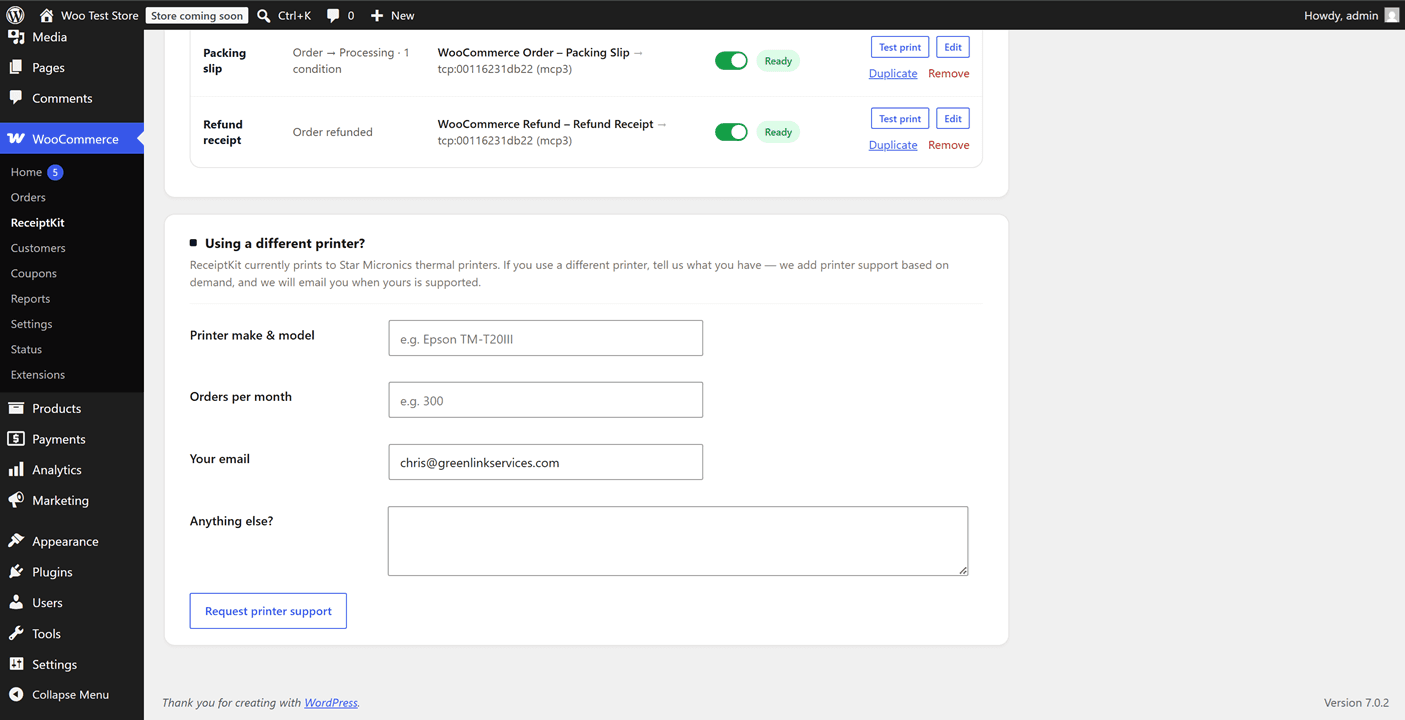
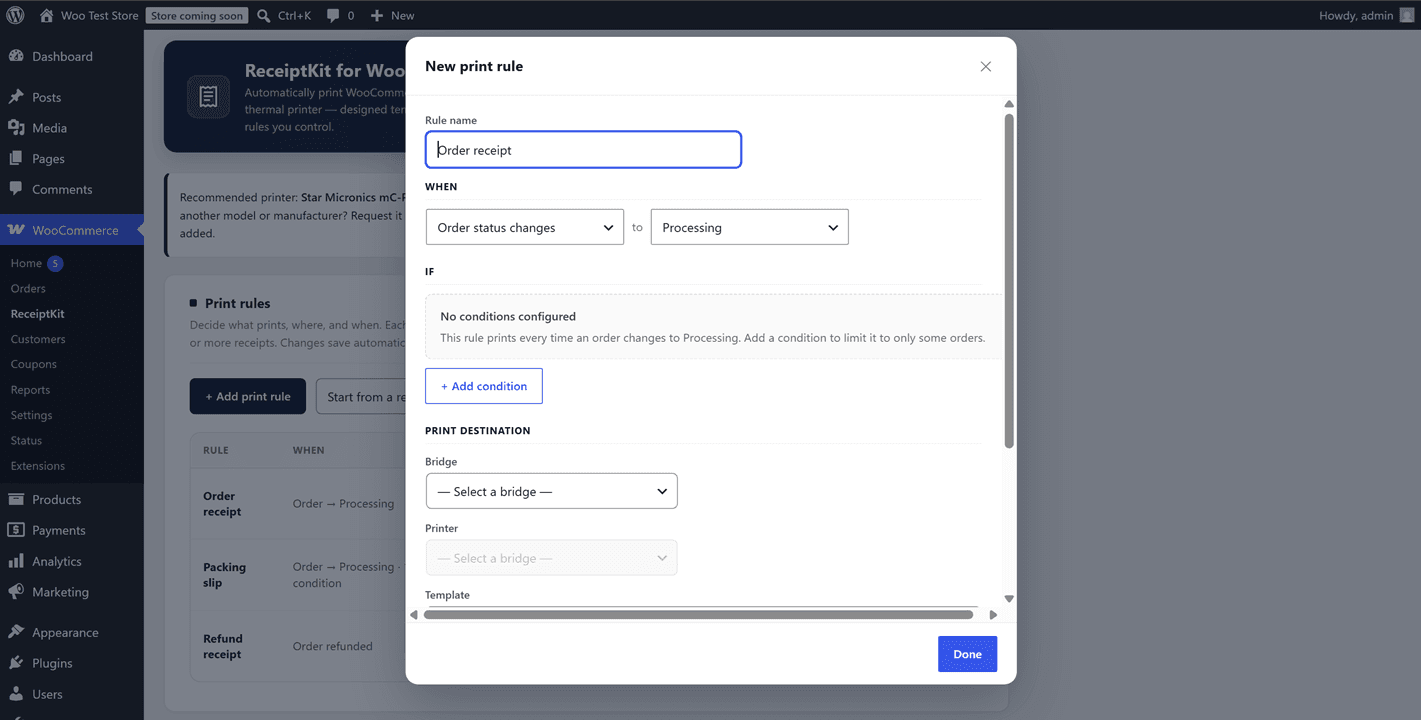
When / If / Then print rules
When an order event happens (status change, refund, order created, or a manual click), if your conditions match the order data, then print to the bridge, printer and template you choose. Test any rule against a recent order before enabling it.
Kitchen tickets that never miss a modifier
Item variations and product add-ons ("Size: Large", "No onions") print under each line item, plus the customer's note — bold on kitchen tickets so nothing gets missed.
Automatic refund receipts
Point a rule at the Order-is-refunded event and a refund slip prints on full and partial refunds — once per refund, never retroactively.
Route receipts to different printers
One rule for the counter receipt, another for the kitchen ticket — on the same order event. Open a cash drawer before or after printing, and print multiple copies.
Fields from your other plugins
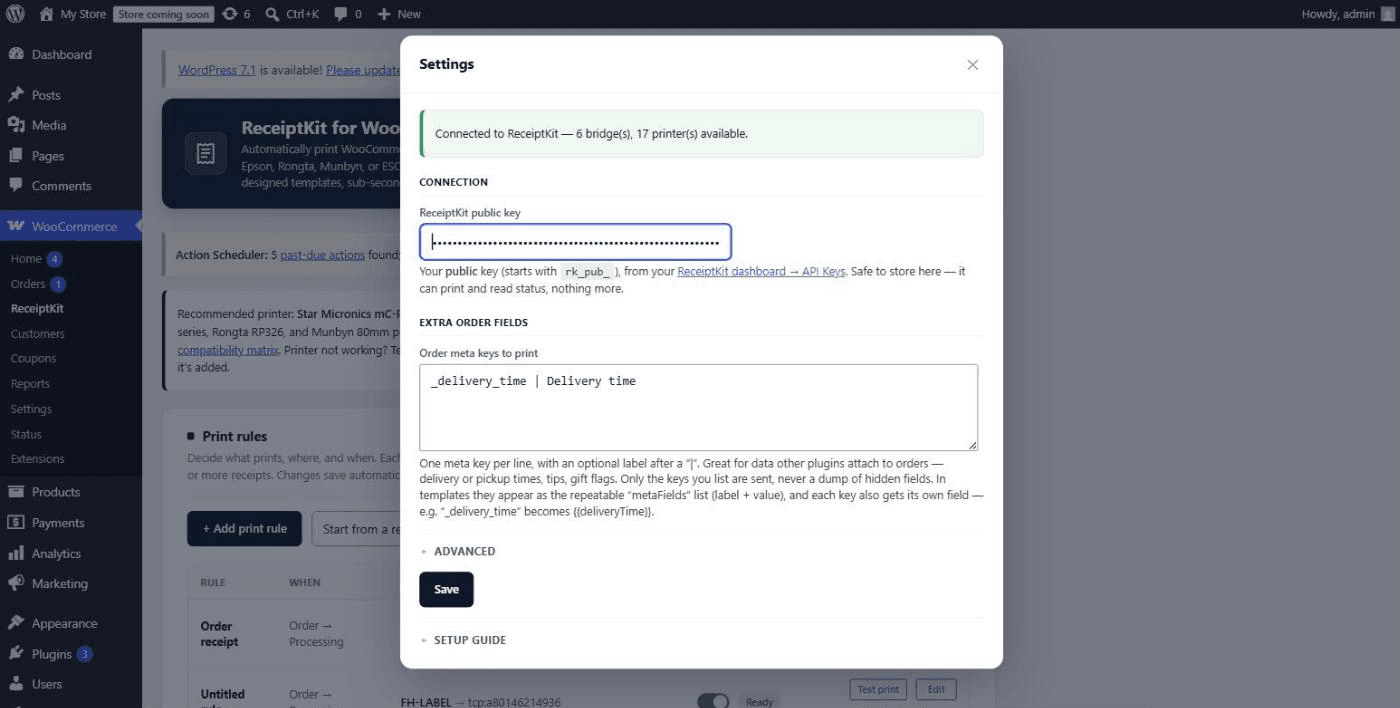
Delivery slots, tips, gift flags — list the order meta keys you want and they flow onto your receipts, as a labeled list or as individual template fields. Only the keys you choose are ever sent.
Live status, right in WordPress
The settings screen shows every bridge and printer on your account — online, offline, out of paper, cover open — with a health indicator on each rule, so you know a rule can actually reach its printer.
Inside the plugin
Set up in five steps
- 1In your WordPress admin, go to Plugins → Add New and search for "ReceiptKit for WooCommerce" (or install from the WordPress.org listing).
- 2Click Install Now, then Activate. (Prefer a manual install? Download the ZIP and upload it via Plugins → Add New → Upload Plugin.)
- 3Open WooCommerce → ReceiptKit, paste your public API key (starts with
rk_pub_, from your dashboard), and click Connect. - 4Add a print rule (or start from a recipe): pick when it runs, add any conditions, and choose the bridge, printer and template. Rules save automatically.
- 5Click Test print on the rule's row to confirm, then enable it with the toggle.
Requirements
A free-to-install plugin with a ReceiptKit account and public API key, the free ReceiptKit bridge running next to a supported thermal printer (Star Micronics, Epson, or ESC/POS-compatible), and WooCommerce 8.0+ (HPOS supported). Full setup details are in the WooCommerce docs.
Common questions
Do I need a specific printer?
You need a thermal printer that speaks StarPRNT, Star Raster, or ESC/POS — that covers Star Micronics, Epson, Rongta, Munbyn, and most generic ESC/POS-compatible models. Tested end-to-end: the Star mC-Print3 and TSP100/TSP143 series, the Epson TM-T88 series, the Rongta RP326, and Munbyn 80mm models. Check your exact model in the printer compatibility matrix, and if yours doesn't work there's a request form right in the plugin's settings.
Is the plugin free?
Yes — the plugin and the bridge are free. You need a ReceiptKit account for the cloud printing service that renders your templates and delivers jobs to your printer.
Is it on WordPress.org?
Yes — it's live in the WordPress.org plugin directory, so you can install it straight from the Plugins screen and updates arrive automatically. If you installed earlier from the ZIP on this page, that's the same plugin — WordPress will offer you updates automatically, nothing needs to be reinstalled.
How do print rules work?
Each rule is a When / If / Then automation. When an order event happens (a status change, a refund, an order being created, or a manual click), the rule checks if your conditions match the order's data, and if so runs the print actions — template + printer + optional cash drawer + copies. Add as many rules as you like, and test any rule against your most recent order before enabling it.
Can I print delivery times, tips, or fields added by another plugin?
Yes. Many plugins store their data as order meta. In Settings → Extra order fields, list the meta keys you want on receipts — each becomes a labeled row and an individual template field (for example _delivery_time becomes {{deliveryTime}}) for prominent placement, like a big pickup time on a kitchen ticket. Only the keys you list are sent.
Is High-Performance Order Storage (HPOS) supported?
Yes. The plugin reads orders through WooCommerce's standard order APIs and declares HPOS compatibility.
Will it print old orders when I activate it?
No. Each rule prints an order (or refund) once, when its event happens after the rule is configured — never retroactively.
Print your first order receipt today
Create a free ReceiptKit account, install the bridge and the plugin, and your orders print themselves.